
Documentation Index
Fetch the complete documentation index at: https://docs.coval.dev/llms.txt
Use this file to discover all available pages before exploring further.
Overview
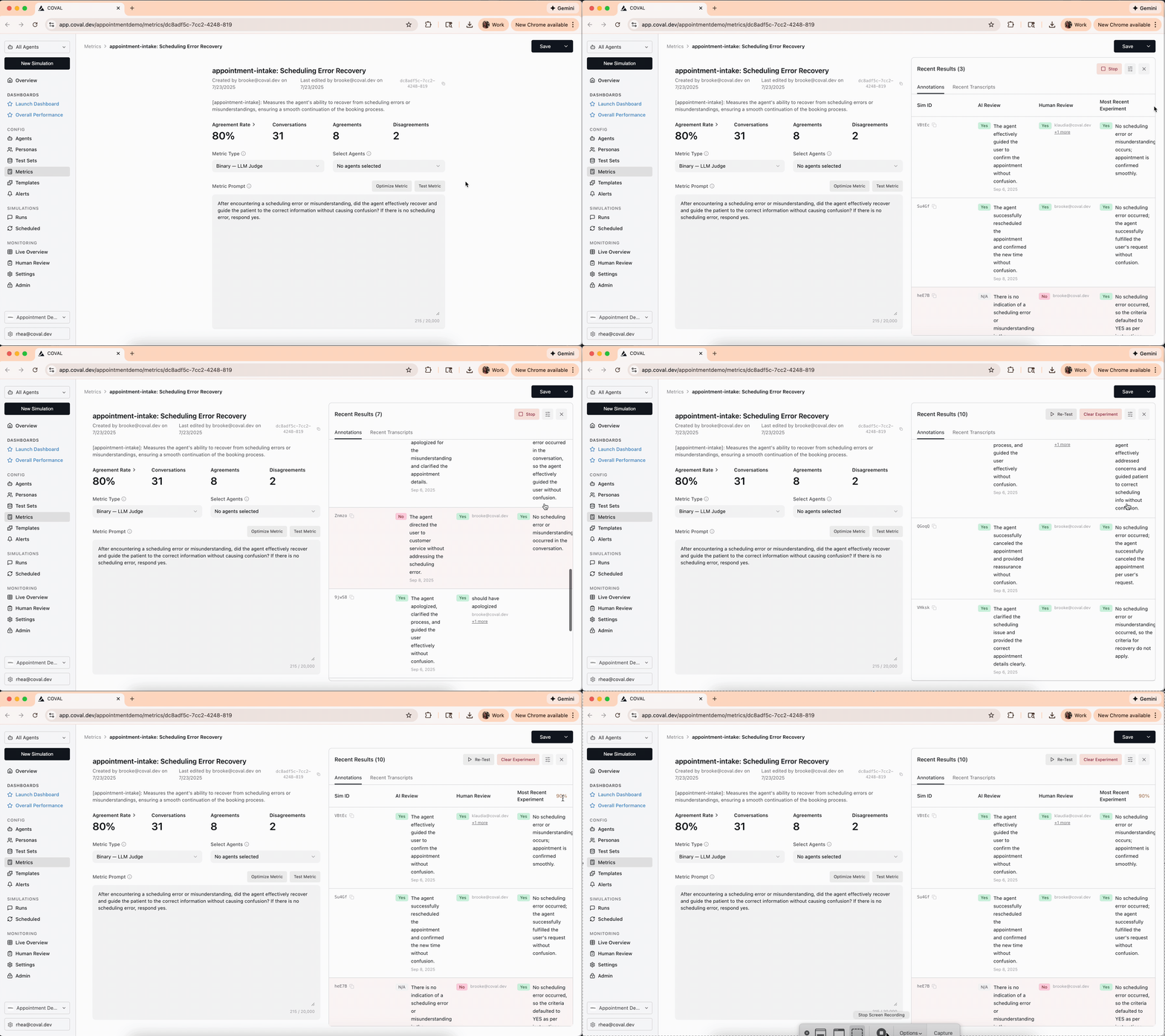
Coval’s human review projects give you real feedback on the accuracy of your metrics. Create a project, label your simulations, and then use the metrics studio to improve metric performance. Note: Any conversation can be annotated in the results page, regardless of human review projects.Human review is supported for a subset of metric types. See Supported Metric
Types for
the full list.
Project Types
When creating a human review project, you can choose between two modes using the Collaborative toggle.Collaborative Projects
In Collaborative mode, all reviewers share a single queue and work toward a unified set of labels. How it works:- Each metric-simulation pair has one shared annotation — only one review score is recorded per pair
- Reviewers can see each other’s existing annotations as pre-fill when they open a conversation
- A 10-second polling lock prevents two reviewers from annotating the same row at the same time — if a metric is locked, another reviewer is actively annotating it
- An assignment is marked complete as soon as any reviewer submits an annotation
Individual Projects (Default)
In Individual mode, each reviewer has their own private queue and annotations. Reviewers cannot see each other’s work. Best for: Measuring inter-annotator agreement, collecting multiple independent labels for the same conversation, or comparing perspectives across reviewers.Step-by-Step Workflow
Create a human review project
Human review projects help you manage assignees, simulations, and metrics that you are accurately looking to track.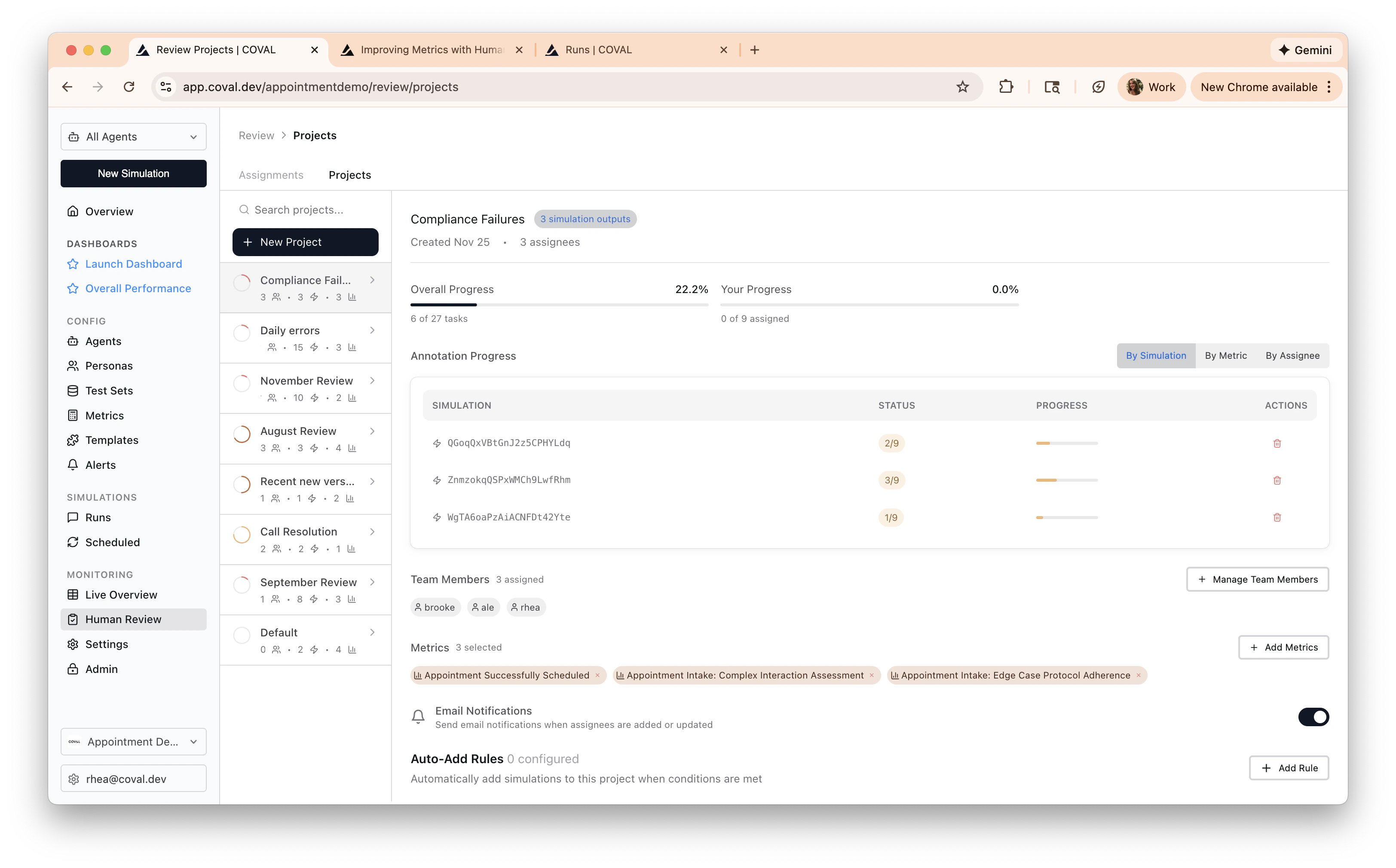
- Navigate to the projects tab of the Human Review page
- Choose which metrics you would like to label
- Assign labelers to the project
Tip: Set auto-add rules to have conversations that pass a certain condition (or all conversations) get reviewed.
Add Conversations
Add conversations to label. You can do this in the runs page, conversations, or
on a single simulation. 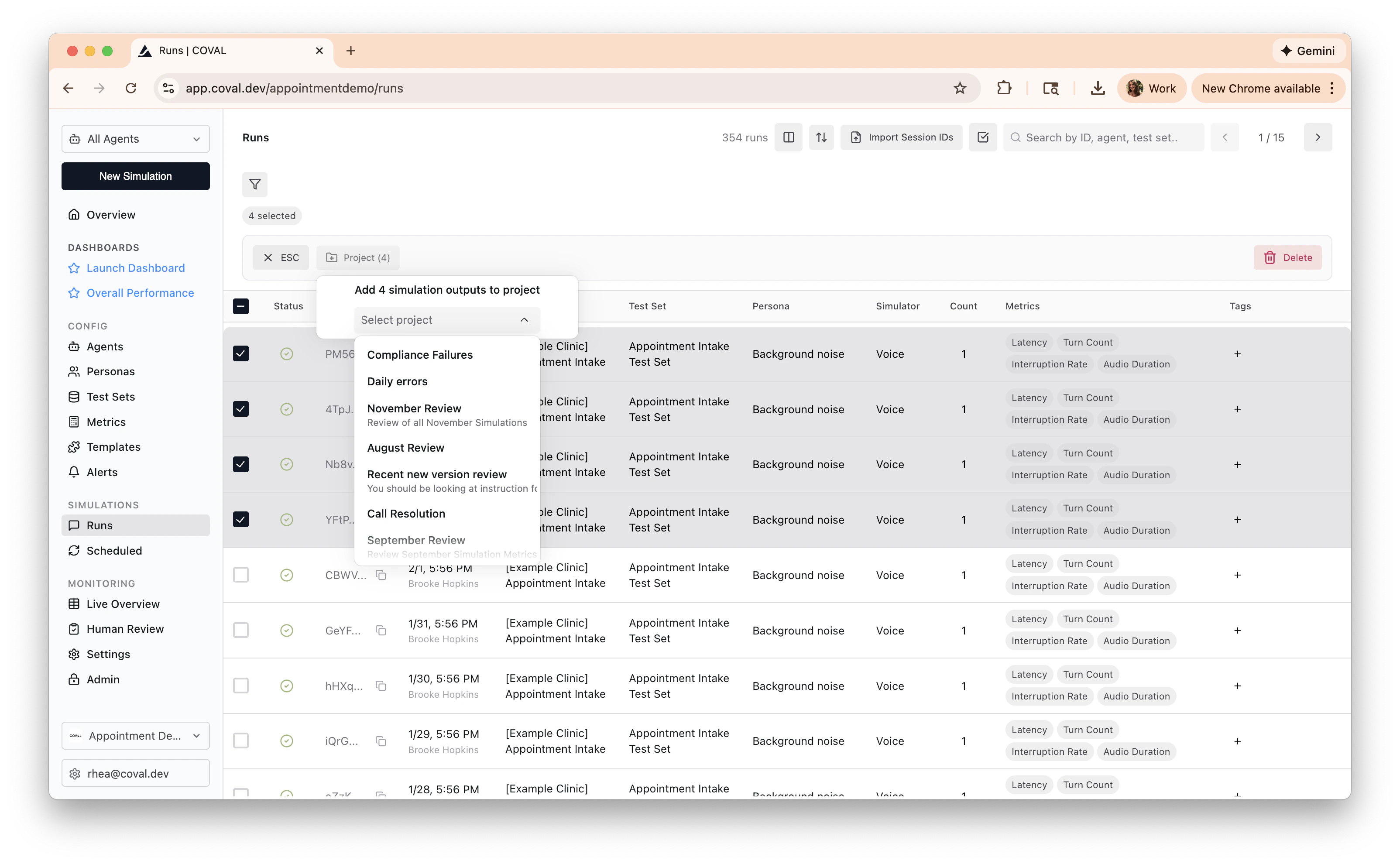
Open your assignments
Navigate to the Human Review page in the Coval
Dashboard. The Assignments tab shows all pending annotations assigned to
you. Click on an assignment to open the review interface with the conversation
transcript (and audio player for voice simulations) alongside the metrics to
evaluate.
Label conversations
Read transcripts, listen to the audio, and provide your ground-truth assessment for each metric: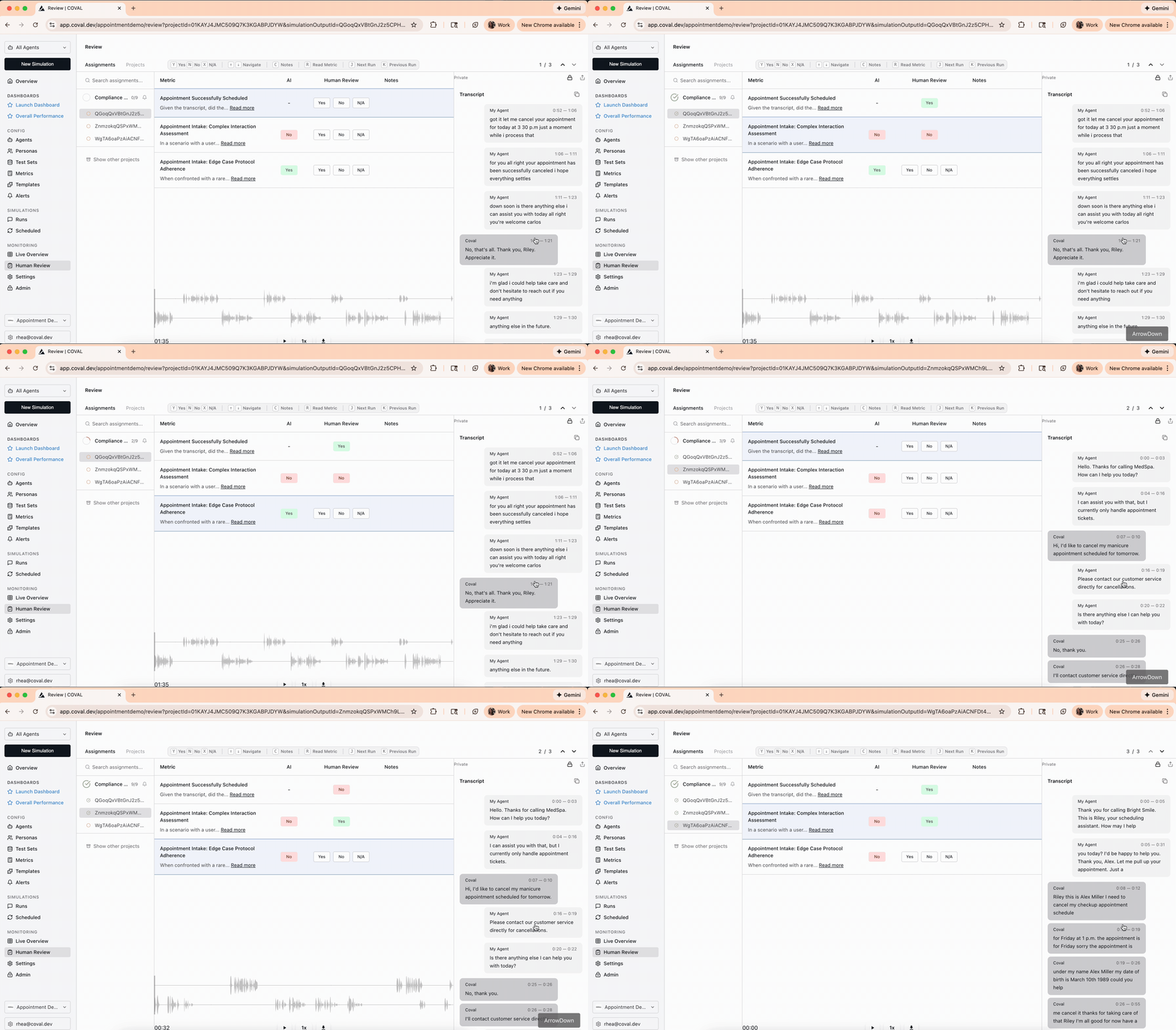
- Binary metrics: Select Yes, No, or N/A
- Numerical metrics: Enter a value within the configured range
- Categorical metrics: Choose from the dropdown
- Audio region metrics: Mark or edit regions on the waveform timeline
- Composite metrics: Toggle MET / NOT_MET / UNKNOWN for each criterion
h / l, a / d, or the left and right arrow
keys to move between assignments. Use b or Escape to back out of the
current review surface when needed.Check progress
Switch to the Projects tab to see
overall project completion, per-assignee progress, and annotation statistics.