

This guide provides instruction for creating high-performing custom prompting metrics in Coval’s evaluation platform. Each metric type benefits from various prompting strategies to achieve reliable, deterministic results. For help writting prompts for the custom metrics Coval offers anDocumentation Index
Fetch the complete documentation index at: https://docs.coval.dev/llms.txt
Use this file to discover all available pages before exploring further.
optimize metric button to improve clarity and confidence.
Core Principles for All Metrics
1. Specificity Over Generality
- Define exact evaluation criteria rather than subjective assessments
- Use concrete, measurable behaviors instead of abstract concepts
- Provide clear boundary conditions for edge cases
2. Role Consistency
- Always refer to the AI agent as “the assistant”
- Use “the user” or “the customer” for human participants
- Maintain consistent terminology throughout your prompts
3. Deterministic Design
- Structure prompts to minimize LLM variance across evaluations
- Provide explicit decision trees when possible
- Define what constitutes partial vs. complete success
Binary LLM Judge Metrics
Purpose: Yes/No evaluations with high accuracy and consistencyPrompt Structure Template
Example 1: Issue Resolution Detection
Example 2: Compliance Verification
Tips and tricks
Be Objective
Be Objective
Recommended: Objective:
“Did the assistant acknowledge the user’s concern within their first two responses?”Avoid: Too subjective:
“Did the assistant provide good customer service?”
Single Focus
Single Focus
Recommended: Singular observation:
- Create separate metrics for seperate obervations such as resolution and professionalism.
- “Did the assistant resolve the issue and maintain professionalism?”
Clear Logic
Clear Logic
Recommended: Use of clear logical operatorsWhy this fails: The metric has an “OR” condition in the question but requires “AND” logic in the evaluation, creating confusion about whether one or all conditions must be met.
- Use AND/OR operators, ANY/ALL.
- Metrics return incorrect results when the evaluation system checks for things that shouldn’t trigger failures.
- Such as requiring disclosure when no transfer occurred, or flagging live conversations as voicemails.
Before (Poor Metric Example):
After (Improved Metric Example):
Categorical LLM Judge Metrics
Purpose: Classification into predefined, mutually exclusive custom categories.Prompt Structure Template
Note: Configure the category options and their definitions in the Coval UI category menu. The categories and their descriptions are set through the platform interface, not in the prompt text.
Example 1: Call Intent Classification
Example 2: Conversation Outcome Classification
Numerical LLM Judge Metrics
Purpose: Score-based evaluations with consistent integer scaling.Prompt Structure Template
Example 1: Empathy Assessment
Example 2: Technical Accuracy Scoring
Multimodal LLM Judge Metrics
Purpose: Include audio-specific evaluations that text analysis cannot capture. Multimodal LLM Judge metrics analyze the audio along with the transcript text. This allows you to evaluate qualities like vocal tone, speech clarity, pacing, and emotional expression that are impossible to assess from text alone.The format of the Multimodal LLM judge metrics are the same as the LLM judge metrics.
Coval will handle the audio processing automatically, Your prompt should focus on what you want to evaluate, not how to process the audio.
What Audio Metrics Can Detect
Audio LLM Judge metrics excel at evaluating:| Category | Examples |
|---|---|
| Speech Quality | Clarity, articulation, pronunciation, stuttering |
| Vocal Characteristics | Tone, pitch, volume consistency, speaking pace |
| Emotional Expression | Enthusiasm, frustration, sarcasm, empathy in voice |
| Professional Demeanor | Courtesy, patience, confidence, nervousness |
| Speaker Identification | Distinguishing between speakers, detecting interruptions |
Prompt Structure Template
Transcript Scope for Audio Metrics
Audio LLM Judge metrics support Transcript Scope, allowing you to evaluate only specific portions of the audio. When you apply filters (such as agent-only or last N turns), the system automatically extracts and evaluates only the corresponding audio segments. This is particularly useful for:- Evaluating agent speech quality without user audio
- Focusing on closing statements or greetings
- Reducing token costs on long recordings
Best Practices for Audio Metrics
Focus on Audio-Only Qualities
Focus on Audio-Only Qualities
Only use Audio LLM Judge for evaluations that require hearing the audio. If something can be determined from the transcript alone (like whether specific words were said), use a standard LLM Judge metric instead - it’s faster and more cost-effective.Use Audio metrics for: Tone of voice, speaking pace, pronunciation clarity, emotional expression, volume issuesUse Text metrics for: Word choice, script compliance, information accuracy
Specify the Speaker Role
Specify the Speaker Role
Always clarify whose audio you’re evaluating:
- “Did the assistant speak clearly…”
- “Did the user sound frustrated…”
- “Was there crosstalk between both speakers…”
Define Concrete Audio Criteria
Define Concrete Audio Criteria
Replace subjective terms with specific, observable audio qualities:
| Avoid | Use Instead |
|---|---|
| ”Good tone" | "Calm, even-paced tone without audible frustration" |
| "Clear speech" | "Words pronounced distinctly without mumbling or slurring" |
| "Professional" | "Business-appropriate volume and pace, no sighing or dismissive inflections” |
Include Reasoning Guidance
Include Reasoning Guidance
For complex evaluations, ask the model to consider specific aspects before making a determination. This improves accuracy:
Example 1: Speech Clarity Assessment
Example 2: Professional Tone Detection
Example 3: Empathy Detection
Example 4: Speaker Diarization Quality
Common Pitfalls to Avoid
| Pitfall | Problem | Solution |
|---|---|---|
| Evaluating transcript content | Audio metrics can’t reliably assess word choice | Use standard LLM Judge for text content |
| Vague audio criteria | ”Good voice” is subjective and inconsistent | Define specific qualities: pace, clarity, tone |
| Missing speaker specification | Unclear whose voice to evaluate | Always specify: assistant, user, or both |
| Combining unrelated qualities | ”Clear AND professional AND empathetic” is too broad | Create separate metrics for each quality |
Transcript Scope
Purpose: Focus metric evaluation on specific portions of a conversation rather than the entire transcript. Transcript Scope allows you to filter which messages the LLM evaluates, reducing noise and improving accuracy for targeted assessments. This feature is available for all LLM Judge metrics (Binary, Numerical, Categorical) and Audio LLM Judge metrics.When to Use Transcript Scope
| Use Case | Filter Configuration |
|---|---|
| Evaluate only agent responses | Role filter: agent |
| Check the closing of a conversation | Range filter: Last 3 turns |
| Assess user sentiment only | Role filter: user |
| Focus on recent context | Range filter: Last N messages |
Configuration Options
Transcript Scope Toggle:- Full (default) - Evaluate the entire transcript
- Custom - Apply filters to focus on specific messages
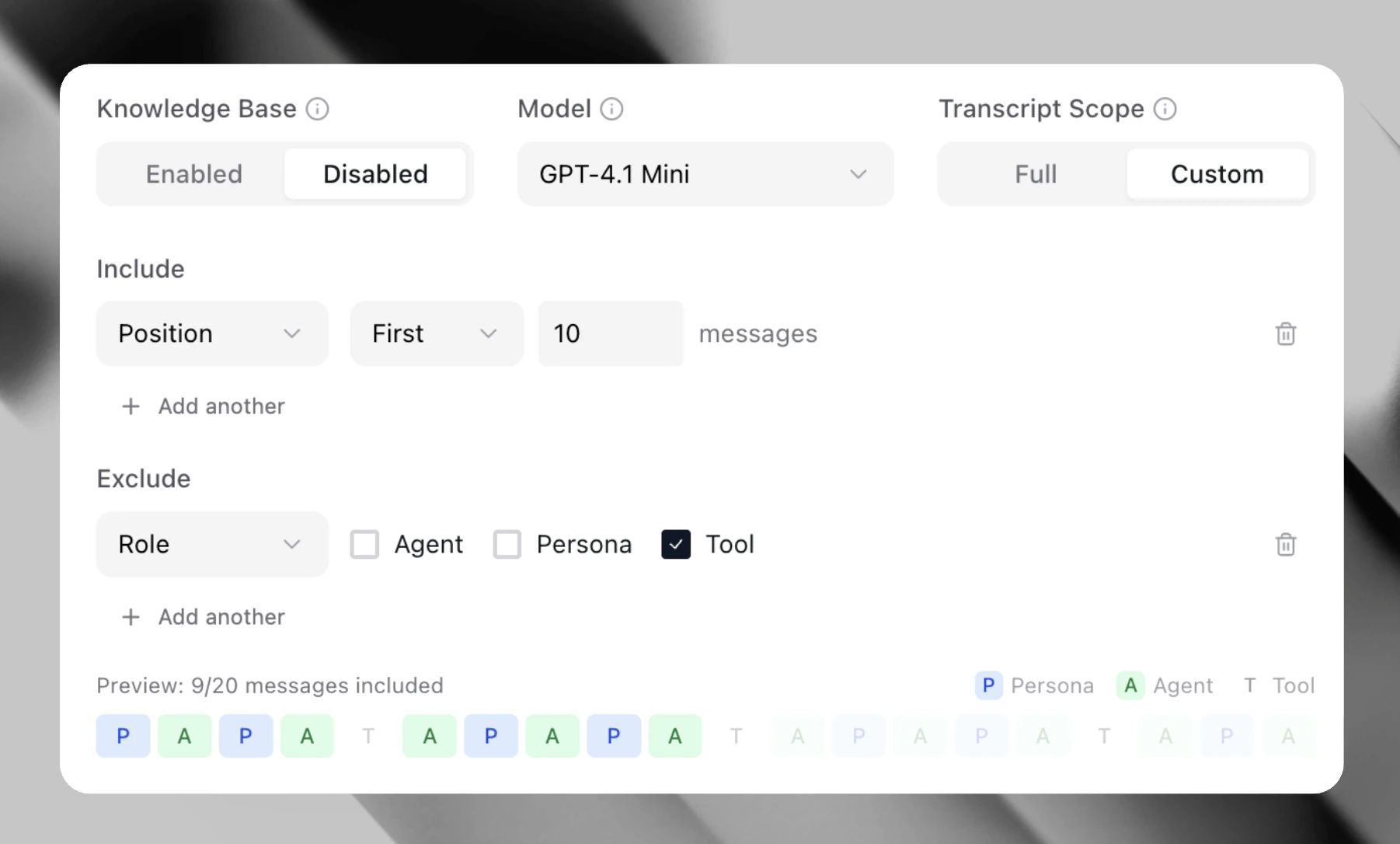
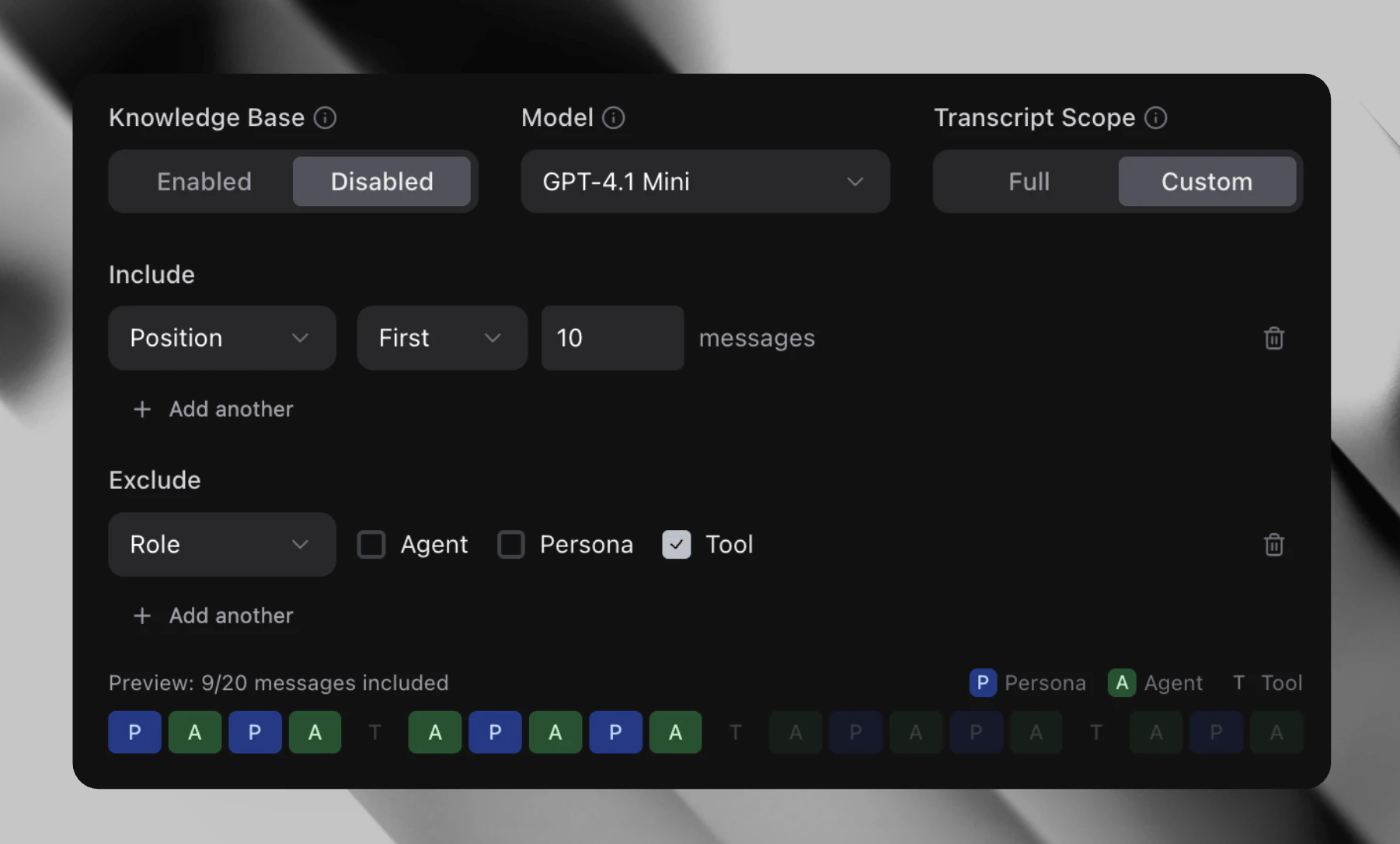
Role Filter
Role Filter
Limit evaluation to messages from specific speakers:
- Agent - Only evaluate assistant/agent messages
- User - Only evaluate user/customer messages
- Both - Evaluate messages from selected roles
Range Filter
Range Filter
Limit evaluation to a specific portion of the conversation:
- Last N turns - Evaluate only the final N message exchanges
- First N turns - Evaluate only the opening N message exchanges
Transcript Scope for Audio Metrics
When using Transcript Scope with Audio LLM Judge metrics, the system automatically:- Filters the transcript to the selected messages
- Uses message timestamps to extract the corresponding audio segments
- Merges adjacent audio segments (within 0.5 seconds) to avoid artifacts
- Sends only the filtered audio to the LLM for evaluation
- Enable Custom transcript scope
- Add a Role filter for
agent - Add a Range filter for
Last 3 turns
Benefits
- More accurate evaluations - Remove noise from irrelevant messages
- Lower costs - Process less content per evaluation
- Faster execution - Smaller context means quicker LLM responses
- Targeted insights - Focus on the exact conversation segments that matter
Composite Evaluation
Purpose: Evaluates a transcript against custom criteria and returns an aggregated score. It assesses each criterion and reports how many passed. When to use: Use Composite Evaluation when you need to check whether a conversation meets several requirements at once.Use cases
- Did the agent greet the customer, verify their identity, and offer a resolution?
- Did the response cover all required talking points?
- Did the conversation follow each step of a compliance checklist?
Implementation
Criterion Source - Choose where your criteria come from:- From Test Case - Pulls criteria automatically from each test case’s Expected Behaviors field. This is useful when different test cases have different criteria.
- Static Criteria - Define a fixed list of criteria directly on the metric. Every transcript is evaluated against the same set.
- Knowledge Base - Enable to give the evaluator access to your knowledge base for more informed assessments.
- LLM Model - Select which model performs the evaluation.
- Transcript Scope - Limit evaluation to specific portions of the transcript. See Transcript Scope for configuration details.
- An overall score count and percentage of how many passed criteria.
- A breakdown showing which criteria passed or failed with reasoning.
- A summary explaining the overall evaluation.
Understanding Result Types
Each criterion is evaluated independently and returns one of three results:| Result | Meaning |
|---|---|
| MET | Clear evidence in the transcript that the criterion was satisfied |
| NOT_MET | Evidence that contradicts or fails to satisfy the criterion |
| UNKNOWN | Insufficient information to determine |
Writing Effective Custom Evaluation Prompts
The Custom Evaluation Prompt field controls how the evaluator interprets each criterion. A well-written prompt provides context that helps the evaluator understand your domain and make accurate determinations. Default Behavior: Without a custom prompt, the evaluator uses semantic matching to determine if each criterion was met. This works well for straightforward criteria but may return UNKNOWN for domain-specific expectations. When to Use a Custom Prompt:- Your criteria reference domain-specific terminology
- You need the evaluator to understand your agent’s role or capabilities
- You want to define what counts as “meeting” a criterion in your context
Custom Prompt Examples
Custom Prompt Examples
Healthcare Scheduling Agent:Banking Support Agent:
Prompt Structure Guidelines
Prompt Structure Guidelines
- State the agent’s role - What does the agent do? What information does it have access to?
- Define ambiguous terms - What does “confirms” or “explains” mean in your context?
- Set evaluation standards - What level of detail counts as meeting a criterion?
Writing Effective Criteria
The most common cause of inaccurate results is vague criteria. The evaluator uses semantic understanding, so equivalent meanings count as matches. However, it cannot infer intent from ambiguous statements. The Specificity Formula Good criteria follow this pattern: [Actor] + [Specific Action] + [Specific Information/Outcome]Vague vs Specific Examples
Vague vs Specific Examples
| Scenario | Vague (Likely UNKNOWN) | Specific (Reliable) |
|---|---|---|
| Appointment booking | ”Agent schedules the appointment" | "Agent confirms the appointment date, time, and provider name” |
| Account inquiry | ”Agent explains the fees" | "Agent states the monthly fee amount and when it is charged” |
| Password reset | ”Agent helps with password" | "Agent sends a password reset link to the registered email address” |
| Escalation | ”Agent offers to escalate" | "Agent offers to transfer to a specialist when unable to resolve the issue” |
Why Vague Criteria Fail
Why Vague Criteria Fail
Consider the criterion: “Agent explains the account options”This fails because:
- “Account options” could mean account types, features, fees, or upgrades
- The evaluator cannot determine which aspect you intended
- Even if the agent discussed accounts, there’s no way to verify the specific expectation was met
Balancing Specificity for Shared Test Sets
Balancing Specificity for Shared Test Sets
Using Agent Evaluation Context
Adding your agent’s system prompt or context significantly improves evaluation accuracy. The evaluator performs better when it understands what your agent is supposed to do. Navigate to Agent Settings > Evaluation Context and add:- What the agent does and what information it has access to
- Key policies or procedures it should follow
- How it should handle common scenarios
Troubleshooting UNKNOWN Results
If you’re getting UNKNOWN results:- Improve your custom prompt - Add domain context and define what “meeting” a criterion means in your use case
- Check criterion specificity - Is the criterion concrete enough to verify against the transcript?
- Add agent evaluation context - Does the evaluator understand what the agent is supposed to do?
- Review the transcript - Is the expected information actually present in the conversation?
- Split compound criteria - Break “Agent explains X and confirms Y” into two separate criteria
Tool Call Metrics
Purpose: Evaluate whether AI agent tool calls (functions) were executed correctlyPrompt Structure Template
Example 1: Function Call Accuracy
Example 2: API Integration Validation
API State Matcher
Purpose: Evaluate the assistant by validating real-world system outcomes via an external API.Implementation
- Add the URL of the API endpoint
- Select
GETfor simple lookups orPOSTif the API requires a body. - Expected Body can be a full JSON object, a primitive value (string, number, boolean), or a template variable.
Template Patterns:
{{expected_output.balance}},{ "status": "success" },completed - Match path (optional): A dot-notation path used to extract a specific field from the API response.
- Timeout (optional): Maximum wait time for the API response before marking the metric as failed.
- Headers (optional): Custom HTTP headers sent with the request.
Use Cases
- Verify the agent produced the correct structured output.
- Validate mocked API responses in simulations.
- Check tool-call results in real services.
How it works
- An HTTP request is sent to the specified API endpoint.
- The response body is inspected (optionally at a specific JSON path).
- The extracted value is compared against your Expected Body.
- Returns 1 if the response body matches the expected value, otherwise returns 0.
Match Expected Simulaton Wrapper
Purpose: Evaluates an assitant by comparing data captured during the simulation against an expected value.Instead of calling an external API like API State Matcher, this metric inspects simulation wrapper observations (pre- or post-simulation)
and verifies that the recorded response matches expectations.
Implementation
- Select observations (pre- or post-simulation)
- Expected Body can be a full JSON object, a primitive value (string, number, boolean), or a template variable.
Template Patterns:
{{expected_output.balance}},{ "status": "success" },completed
Use cases
- Verify the agent produced the correct structured output.
- Validate mocked API responses in simulations.
- Test tool-call results without affecting real services.
How it works
- Using the wrapper observations (for example, API pre-simulation or post-simulation payloads).
- This metric reads the selected observation.
- Extracts a value using a match path and compares the result to the expected body.
- Returns 1 if the response body matches the expected value, otherwise returns 0.
Metadata Field Metric
Purpose: Reports the value of a run’s metadata field, retrieved from the custom metadata using a specified key. The value may be a number, text, or boolean.Implementation
- Select the metadata field type: string, float, or boolean.
- Input the metadata field key.
Use Cases
- Track custom business metrics (e.g. customer satisfaction scores, call type).
- Monitor agent performance indicators passed through metadata.
- Extract conversation context data for analysis.
- Aggregate custom KPIs from your application.
- Track boolean flags (e.g. escalation occurred, customer authenticated, issue resolved).
How It Works
- The metric returns the exact value stored in the specified metadata field.
- Automatically aggregates values across multiple conversations.
- Direct field value extraction with no LLM processing required.
- Supports numeric, text, and boolean metadata values.
- Boolean values are output as float (0.0 for false, 1.0 for true) for proper metric aggregation.
Transcript Regex Match Metrics
Purpose: Pattern detection for exact phrase matching, compliance validation, and format verification.Implementation
Configure the Regex Pattern field (required) and optional fields below. No text prompt is required for this metric type.Configuration Fields
| Field | Required | Default | Description |
|---|---|---|---|
| Regex Pattern | Yes | — | Regular expression pattern to match against the transcript |
| Role | No | All messages | Filter by speaker role: AGENT, PERSONA, TOOL, SYSTEM, or MUSIC |
| Match Mode | No | presence | presence returns 1 if pattern is found; absence returns 1 if pattern is NOT found |
| Position | No | any | any checks all messages, first checks only the first message, last checks only the last message (of the filtered role) |
| Case Insensitive | No | false | When enabled, pattern matching ignores case |
Pattern Design Guidelines
- Use word boundaries (
\b) for exact word matching. - Enable Case Insensitive matching instead of using inline
(?i)flags for clarity. - Use Position filtering instead of complex anchoring when you only care about the first or last message.
- Use Absence mode for compliance rules (“agent must not say X”) instead of trying to negate patterns in regex.
Test patterns thoroughly before deployment.
Use Case Examples
Example 1: Greeting Detection
Goal: Detect if the agent uses a proper greeting phrase. Regex Pattern:\b(hello|hi|good morning|good afternoon|good evening)\b
Role: AGENT
Case Insensitive: Enabled
Returns: 1 if greeting found, 0 if no greeting detected.
Example 2: Required Disclosure in First Message
Goal: Verify the agent states a required disclosure at the start of the conversation. Regex Pattern:this call may be recorded
Role: AGENT
Position: first
Case Insensitive: Enabled
Returns: 1 if disclosure is in the first agent message, 0 if missing.
Example 3: Prohibited Language (Compliance)
Goal: Ensure the agent never makes unauthorized promises. Regex Pattern:\b(guarantee|promise|100%|definitely)\b
Role: AGENT
Match Mode: absence
Case Insensitive: Enabled
Returns: 1 if the agent did NOT use prohibited language (pass), 0 if prohibited language was found (fail).
Example 4: Closing Statement in Last Message
Goal: Verify the agent ends the conversation with a proper closing. Regex Pattern:(goodbye|have a (great|nice|lovely) day|thank you for calling)
Role: AGENT
Position: last
Case Insensitive: Enabled
Returns: 1 if closing statement found in last agent message, 0 if missing.
Example 5: Phone Number Format Validation
Goal: Detect when the user provides a phone number in standard US format. Regex Pattern:\b\d{3}[-.]?\d{3}[-.]?\d{4}\b
Role: PERSONA
Returns: 1 if valid format detected, 0 if invalid or missing.
How It Works
- The metric filters transcript messages by Role (if specified). If no role is set, all messages are checked.
- The Position filter is applied:
firstkeeps only the first matching message,lastkeeps only the last. - The Regex Pattern is matched against the filtered messages, with Case Insensitive applied if enabled.
- The Match Mode determines the result:
presence: returns 1 if the pattern was found, 0 if not.absence: returns 1 if the pattern was NOT found, 0 if it was.
- Direct pattern matching — no LLM required, fast and deterministic.
Words Per Message (Threshold)
Purpose: Validates that all agent messages meet a configurable word count requirement. What it measures: Whether every agent message satisfies a word count condition — for example, “all messages must have fewer than 50 words” or “all messages must have at least 5 words.” When to use:- Enforcing response length guidelines (e.g., keeping answers concise)
- Detecting unexpectedly short or empty responses
- Validating that the agent doesn’t produce overly verbose replies
- YES = all agent messages meet the word count condition.
- NO = at least one message violated the condition. The detail view identifies which messages failed and their word counts.
Customized Audio Metrics
Custom Pause Analysis
Purpose: Measures how frequently the agent pauses mid-speech and how long those pauses are. What it measures: Frequency of agent pauses within a turn (pauses per minute), along with total and average pause duration. When to use:- Identifying unnatural or excessive hesitations in agent speech
- Detecting processing delays that manifest as in-speech pauses
- Evaluating speech fluency across different configurations
- Lower values indicate more fluent speech.
- The detail view shows each pause with its timestamp and duration.
- Brief pauses are normal and often expressive; frequent longer pauses may indicate hesitation artifacts.
Volume Variance
Purpose: Measures how consistently the agent maintains volume throughout the conversation. What it measures: Standard deviation of audio volume (in dB) across agent speech — lower values indicate more consistent volume. When to use:- Identifying erratic loudness changes in agent speech
- Ensuring consistent audio quality across a call
- Comparing voice model configurations for volume stability
| Preset | Loud threshold | Soft threshold |
|---|---|---|
strict | above -3 dBFS | below -30 dBFS |
normal (default) | above -6 dBFS | below -35 dBFS |
lenient | above -9 dBFS | below -40 dBFS |
loud_threshold_db, soft_threshold_db, or interval_seconds.
How to interpret:
- Lower standard deviation = more consistent volume.
- The detail view shows only the problematic intervals (too loud or too soft) with their timestamps and dB values.
Abrupt Pitch Changes
Purpose: Detects sudden, jittery transitions in pitch that can make speech sound unnatural. What it measures: Distinct segments where pitch changes abruptly between frames, reported as events per minute. When to use:- Detecting unnatural speech characteristics in synthesized voices
- Identifying voice models with unstable or jittery pitch
- Comparing voice configurations for smoothness
| Parameter | Default | Description |
|---|---|---|
significant_changes_threshold_hz | 200.0 | Minimum pitch change in Hz to consider a transition abrupt |
- Lower values indicate smoother, more natural pitch transitions.
- Higher values suggest jittery or unstable pitch.
Volume/Pitch Misalignment
Purpose: Detects moments where pitch and volume move in opposite directions, which can indicate unnatural prosody in synthesized speech. What it measures: Frames where the pitch is rising while volume is falling (or vice versa), scored by severity relative to the clip’s own baseline. When to use: Identifying unnatural-sounding speech output — for example, a voice that gets louder while its pitch drops unexpectedly, or vice versa. Useful for:- Evaluating text-to-speech engine quality
- Detecting prosody issues that may sound “off” to listeners
- Comparing voice model configurations
| Parameter | Default | Description |
|---|---|---|
min_volume_change_for_pitch_misalignment | 7 | Minimum intensity change (dB) required to flag a misalignment event |
- Low severity (~0 – 1): Both signals are near their mean change magnitude — nothing unusual relative to the speaker’s baseline.
- Medium severity (~1 – 2): One or both signals are about 1 standard deviation above their clip mean.
- High severity (~2–6+): Both signals are 2+ standard deviations above their clip mean — a genuinely unusual frame.
Non-Expressive Pauses
Purpose: Identifies pauses in speech that lack preparatory pitch movement, which can make the agent sound flat or monotone. What it measures: Pauses above a minimum duration where pitch shows little variation in the frames immediately before the pause, reported as events per minute. When to use:- Evaluating whether a voice sounds expressive and natural
- Detecting monotone delivery in synthesized speech
- Comparing voice configurations for expressiveness
| Parameter | Default | Description |
|---|---|---|
min_pause_duration_seconds | 0.6 | Minimum silence duration (s) to qualify as a pause |
pre_pause_window | 5 | Number of 10ms frames to inspect before each pause for pitch movement |
- Lower values indicate more expressive delivery — pitch varies naturally before pauses.
- Higher values suggest a flat or robotic cadence where pauses arrive without natural pitch cues.
Vocal Fry
Purpose: Detects vocal fry — a low, creaky speech quality, typically occurring at the end of phrases. What it measures: Total time spent in vocal fry (in seconds), with additional detail on percentage of affected speech and longest continuous fry segment. When to use:- Evaluating whether a voice has creaky or rough-sounding artifacts
- Monitoring vocal quality across different voice configurations
- Identifying voices where fry affects listener experience
| Parameter | Default | Description |
|---|---|---|
sample_rate_seconds | 0.01 | Analysis frame rate in seconds |
pitch_floor | 60 | Minimum pitch frequency (Hz) for detection |
pitch_ceiling | 400 | Maximum pitch frequency (Hz) for detection |
low_pitch_threshold_multiplier | 0.6 | Fraction of speaker’s median pitch below which a frame is considered low-pitched |
jitter_threshold_multiplier | 2.0 | Multiple of baseline jitter above which a frame is flagged |
harmonics_to_noise_ratio_threshold_offset_db | -10.0 | dB offset below baseline HNR that marks a frame as noisy |
harmonics_to_noise_ratio_minimum_pitch | 60 | Minimum pitch for HNR calculation (Hz) |
harmonics_to_noise_ratio_silence_threshold | 0.1 | Amplitude threshold below which frames are treated as silent |
harmonics_to_noise_ratio_periods_per_window | 1.0 | Analysis window size in pitch periods for HNR |
baseline_calculation_multiplier | 0.8 | Fraction of median pitch used to define the “clear voice” baseline for HNR and jitter |
min_fry_segment_seconds | 0.05 | Minimum duration (s) for a fry segment to be counted |
- Total time in vocal fry (seconds). Lower is better.
- Occasional brief fry is common in natural speech; sustained or frequent fry may reduce perceived quality.
Spectrogram Pitch Analysis
Purpose: Evaluates whether audio contains natural upper-frequency content, which is a key indicator of voice naturalness. Synthetic or bandwidth-limited audio often lacks energy in higher frequency ranges. What it measures: The fraction of upper-frequency spectrogram bins that have energy above a noise floor, averaged across analysis windows. Returns 1.0 (pass) or 0.0 (fail) based on whether the average fill ratio meets the naturalness threshold. When to use:- Detecting bandwidth-limited or muffled synthesized speech
- Comparing voice model configurations for spectral richness
- Identifying voices that lack harmonic upper-frequency energy
| Parameter | Default | Description |
|---|---|---|
naturalness_threshold | 0.10 | Minimum average fill ratio (0.0–1.0) to pass |
upper_region_percentage | 0.25 | Fraction of the frequency range treated as the upper region |
noise_floor_db | -15.0 | dB level above which a bin counts as filled |
segment_length_seconds | 2.0 | Duration of each analysis window |
- 1.0 = pass — average upper-frequency fill ratio meets the naturalness threshold.
- 0.0 = fail — audio lacks sufficient upper-frequency energy.
- The detail view shows the fill ratio per window across the recording timeline.
Using Trace Context in LLM Judge Metrics
Purpose: Give an LLM Judge or Composite Evaluation metric visibility into what your agent actually did — not just what it said — by including OpenTelemetry span data alongside the transcript. When Include Traces is enabled on a custom transcript scope, the judge automatically receives aTRACE CONTEXT: block appended to its prompt. This block summarizes the OTel spans from the conversation: span names, timing windows, and key attributes like tool call names and function arguments.
For Composite Evaluation metrics (Expected Behaviors), the same TRACE CONTEXT: block is appended to every per-criterion prompt — each criterion is evaluated against both the transcript and the trace spans inside the configured scope.
Walkthrough
When to Enable Include Traces
Trace context is most valuable when the behavior you want to evaluate isn’t visible in the transcript alone:| Use Case | Why Traces Help |
|---|---|
| Verify the agent used the right tools in the right order | Tool call spans show what functions were invoked and with what arguments |
| Catch hallucinations — agent claimed to do something it didn’t | Trace spans show whether the action actually occurred |
| Evaluate retrieval quality | Retrieval spans show what data was fetched before the agent responded |
| Assess error handling | Error spans reveal failures the agent may have silently recovered from |
How to Enable
- Open or create a supported metric — LLM Judge (Binary, Numerical, Categorical, or Audio) or Composite Evaluation.
- Set Transcript Scope to Custom.
- In the custom scope configuration panel, toggle Include Traces on.
Requirements
- Your agent must emit OpenTelemetry traces to Coval. See the OpenTelemetry Traces guide for setup.
- The simulation must have produced trace data. If no trace data is available, the toggle has no effect and the prompt is sent without a trace context block.
Writing Prompts That Leverage Trace Context
When writing prompts for metrics with trace context enabled, reference the trace data explicitly. The judge sees aTRACE CONTEXT: block appended after the transcript — you can instruct it to reason about both sources.
Example: Verify Tool Usage
Example: Catch Hallucination
Utilizing Attributes
You can embed dynamic values from agents, test cases, and simulations into your metric prompts using template variables. This allows you to create context-aware metrics that adapt to specific agent configurations or test case requirements. For comprehensive documentation on using attributes, including nested paths, array indexing, dynamic keys, and complete examples, see Attributes.Advanced Prompting Techniques
1. Chain of Thought for Complex Evaluations
2. Few-Shot Examples for Edge Cases
3. Hierarchical Decision Making
Using Agent Attributes and Test Case Attributes
You can make your metric prompts more dynamic and context-aware by referencing agent attributes and test case attributes. This allows you to create metrics that evaluate agent performance against specific agent configurations or test case requirements.Agent Attributes
Agent attributes are custom properties you define for each agent configuration. How to use agent attributes in metric prompts: Insert{{agent.attribute_name}} anywhere in your metric prompt. The system will automatically replace this placeholder with the actual attribute value from the agent being evaluated.
Example 1: Business Hours Verification
Test Case Attributes
For a test case with attributes like:Combining Agent and Test Case Attributes
You can use both agent attributes and test case attributes in the same metric prompt to create comprehensive evaluations:Knowledge Base Metrics
Coval allows you to connect a knowledge base (KB) to your agent and create LLM Judge metrics that use your knowledge base as context. This enables you to track accuracy on specific articles, knowledge bases, or different flows mentioned in your documentation.Knowledge bases are configured on the agent, not the metric. See Knowledge Base for how to add entries and supported source types.
- Verify agents answer questions using approved knowledge base content.
- Track accuracy across different documentation sources.
- Ensure compliance with specific information in FAQs, policies, or procedures.
- Monitor whether agents provide consistent responses based on authoritative sources.
Setting Up Your Knowledge Base
Step 1: Navigate to Agent Configuration- Go to your Agent setup page
- Select the agent you want to connect to a knowledge base
- Scroll down to the Knowledge Base section
- Click “Add Knowledge Base Entry”
- Select your file type
- Upload your file (Coval will automatically parse it)
- Add a descriptive name (e.g., “Hotel FAQ”, “Product Documentation”)
- Optionally add tags for organization
- Click “Upload”
Creating Knowledge Base Metrics
Step 1: Create a New Metric- Navigate to the Metrics section
- Click “Create New Metric”
- Select Binary LLM Judge as the metric type
- Name your metric (e.g., “FAQ Knowledge Base Accuracy”)
Step 2: Write Your LLM Judge Prompt
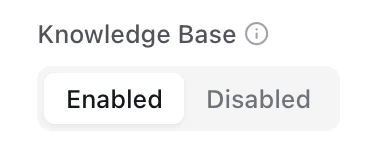
Structure your prompt to evaluate whether the agent used knowledge base information correctly: Example Prompt Structure:- Locate the Knowledge Base toggle (initially disabled)
- Enable the Knowledge Base option
- The system will automatically include your knowledge base as context when evaluating
Step 4: Save Your Metric
- Review your prompt and settings
- Click “Create Metric”
- Your KB metric is now ready to use in simulations and conversations
Using Knowledge Base Metrics in Evaluations
In Simulations- Create or select a test set with scenarios that should use KB information
- Launch a simulation (or use a template)
- Select your KB accuracy metric in the metrics list
- Run the simulation
- Set your KB metric as a Default Metric to run on all incoming transcripts
- Create Metric Rules to apply KB metrics conditionally
- Monitor results in real-time to catch KB accuracy issues in production
Best Practices for Knowledge Base Metrics
Writing Effective Prompts
Do:- Be explicit about what information should come from the KB.
- Define clear conditions for YES and NO responses.
- Account for situations where the KB doesn’t have complete information.
- Consider partial accuracy vs. complete inaccuracy.
- Make assumptions about what the LLM knows without KB context.
- Create overly complex evaluation criteria.
Knowledge Base Organization
Recommended structure:- Use clear, descriptive names for each KB entry.
- Add tags to categorize different types of information.
- Keep individual KB files focused on specific topics.
- Update KB entries regularly to reflect current information.
Metric Validation and Testing
1. Metric Improvement Process
- Use Coval’s “Improve Metric” feature with test transcripts.
- Iterate on prompts to reduce variance.
- Test edge cases and ambiguous scenarios.
- Aim for >90% consistency across similar evaluations.
2. Common Issues and Solutions
| Issue | Solution |
|---|---|
| Inconsistent scoring | Add more specific criteria and examples |
| Edge case failures | Include explicit handling for boundary conditions |
| LLM hallucination | Use more structured prompts with clear constraints |
| Low correlation | Ensure metric measures what you intend to measure |
3. Performance Optimization
- Keep prompts under 2,000 characters when possible.
- Use regex metrics for simple pattern detection.
- Combine related evaluations into single metrics when logical.
- Test with diverse conversation types and lengths.
Best Practices Summary For Creating Metric Prompts
- Use specific, measurable criteria.
- Provide clear positive and negative examples.
- Test extensively with real conversation data.
- Maintain consistent terminology and structure.
- Include edge case handling.